
How to Use Spliteo: A Step-by-Step Getting-Started Guide
How to use Spliteo step by step: create a group, invite people, split expenses, scan receipts, settle up and see your balances across every group.

This guide takes you from your first sign-in to the moment everyone in the group is square. It follows the app’s real screens and labels, so you can keep it open next to Spliteo and follow along. Everything works the same on the web, iOS and Android.
The screenshots show a sample Bariloche group in the current app. Its names and amounts are separate from the Lisbon example below.
1. Create your account
Sign up with email and password, Google, or Apple. The app comes in English and Spanish, with light and dark mode.
On mobile, the bottom bar has four sections: Dashboard, Groups, Personal and More. Most of the action happens in Groups.
2. Create a group
A group is any set of people who share costs: a trip, a shared apartment, a couple, a weekly dinner.
- Go to Groups. On “My Groups”, tap New (or Create Your First Group if you don’t have one yet).
- The Create New Group window walks you through four steps:
- Identity: the group’s name and an optional description.
- Appearance: an icon and a color.
- Currencies: up to 5 now, up to 10 later. The first one is the group’s default currency.
- Participants: optionally add people by email. You can skip this and invite them later.
- Tap Create Group.
Choose currencies with care on trips. If you’re going to Lisbon but paid the flights in dollars, add both EUR and USD. Spliteo keeps balances per currency and never forces a conversion, so each debt stays exact in the currency it was spent in.
3. Invite people or add guests
Groups have two roles, Admin and Member, and only admins can invite. Tap Invite Members and pick one:
- Single Invite: one email address.
- Bulk Invite: several emails at once.
- Create Shareable Link: a link to drop into any chat. You decide how long it works (1 to 168 hours; the default is 7 days) and how many times it can be used (1 to 1,000, or unlimited).
Not everyone wants another app, and that’s fine. With Add Guest Members you add someone by name, no account needed, and track their share like anyone else’s. If they want to join later, invite the guest by email; when they accept, their expenses move to their real account.
4. Add an expense
Tap New Transaction (on mobile, the + button) and pick a type: Expense, Transfer (someone paying someone back) or Income.
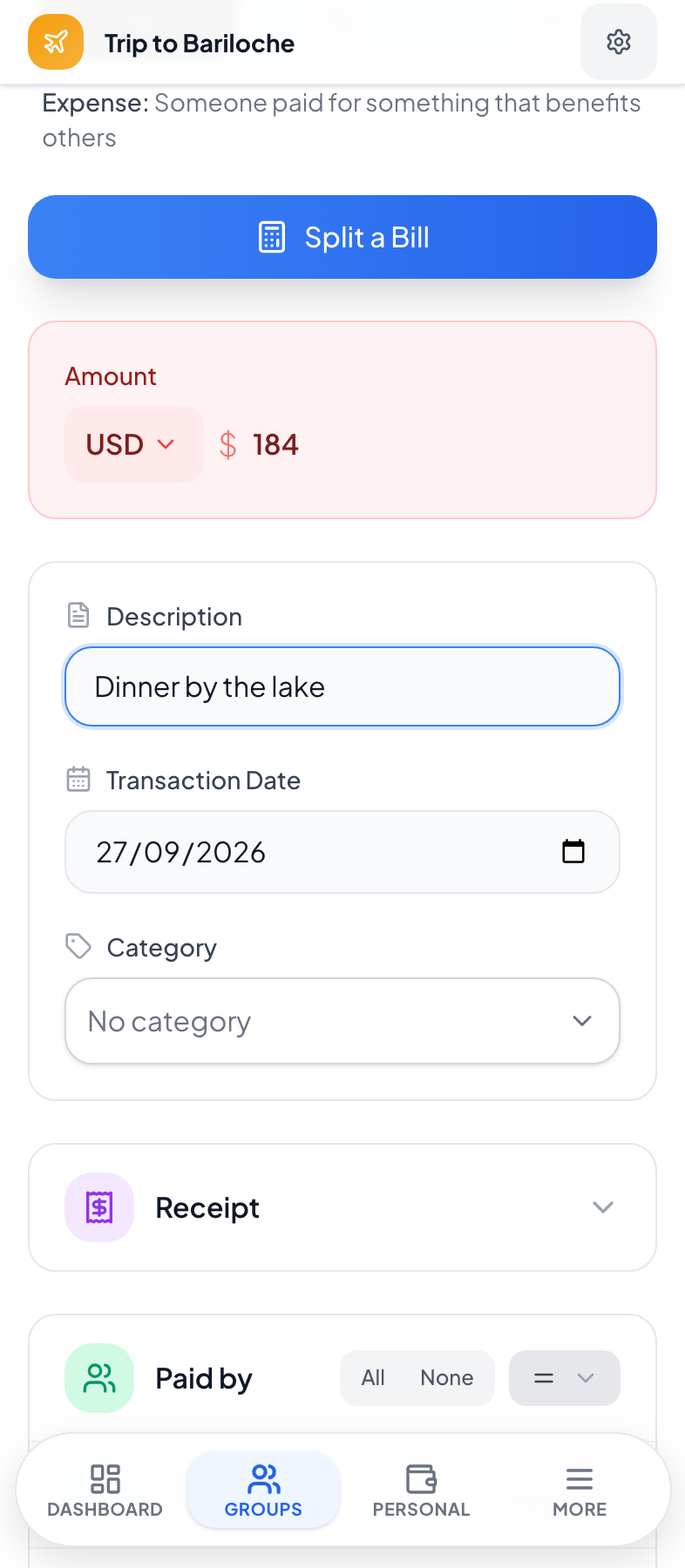
For an expense, enter the amount and description, then answer two questions:
- Who Paid? One person or several.
- Who Benefits? Everyone the expense was for.
Each side has three modes: Evenly, Amount (exact amounts) and Parts (shares, like 2 parts vs 1 part). You also choose who’s included, so leaving someone out of a round of drinks is easy.
Here’s a weekend in Lisbon for three: you, Sam and Alex.
| Expense | Who paid | Who benefits | Shares |
|---|---|---|---|
| Groceries, €60 | You | All three, Evenly | €20 each |
| Apartment, €480 | You | Parts: you 2, Sam 1, Alex 1 | €240, €120, €120 |
| Dinner, €90 | You €50, Sam €40 | All three, Evenly | €30 each |
The dinner shows multiple payers: you paid €20 more than your share, Sam paid €10 more, and Alex owes €30.
There’s no percentage mode. For a 60/40 split, use Parts with 3 parts and 2 parts, or type exact figures with Amount. On €1,500 of rent, that’s €900 and €600. Our guide to splitting expenses as a couple goes deeper on this.
Two time savers:
- Math in the amount field. Type
12.50+8+4.75and Spliteo works out €25.25. It handles +, −, × and ÷. - Quick entry lets you add many rows at once, up to 50. Handy when you’re catching up after a weekend away.
Spliteo suggests a category from the description, drawing on 17 built-in categories with subcategories. Groups can also set their own category rules, where a pattern in the description maps to a category. And on every plan, there’s no daily or monthly limit on how many expenses you add.
5. Split a Bill and Scan Receipt
When people ordered different things at a restaurant or split a supermarket run, use Split a Bill:
- Add the items and prices.
- Assign each item to the people who had it.
- Add a tip or discount if there is one.
- Apply it to the expense.
To skip the typing, tap Scan Receipt and take a photo. Spliteo reads it and fills in the items and prices, so you only need to check them and assign people. Scans count toward a monthly quota: 3 on Free, 20 on Premium.
6. Set up recurring expenses
Rent, subscriptions and utilities don’t need to be typed every month. Open Recurring Expenses (on mobile, under More), tap Create New and choose daily, weekly, monthly or yearly. Free includes 1 active recurring expense; Premium has no limit. If you share a place, splitting bills with roommates has more ideas.
7. Read balances and settle up
Each group has three tabs: All Transactions, Summary and History.
In Summary, the Settlement card lists who should pay whom, per currency, designed to settle the group with as few payments as possible. In the Lisbon example, you’re owed €300 and Sam and Alex owe €130 and €170, so it comes down to two payments: Sam pays you €130 and Alex pays you €170.
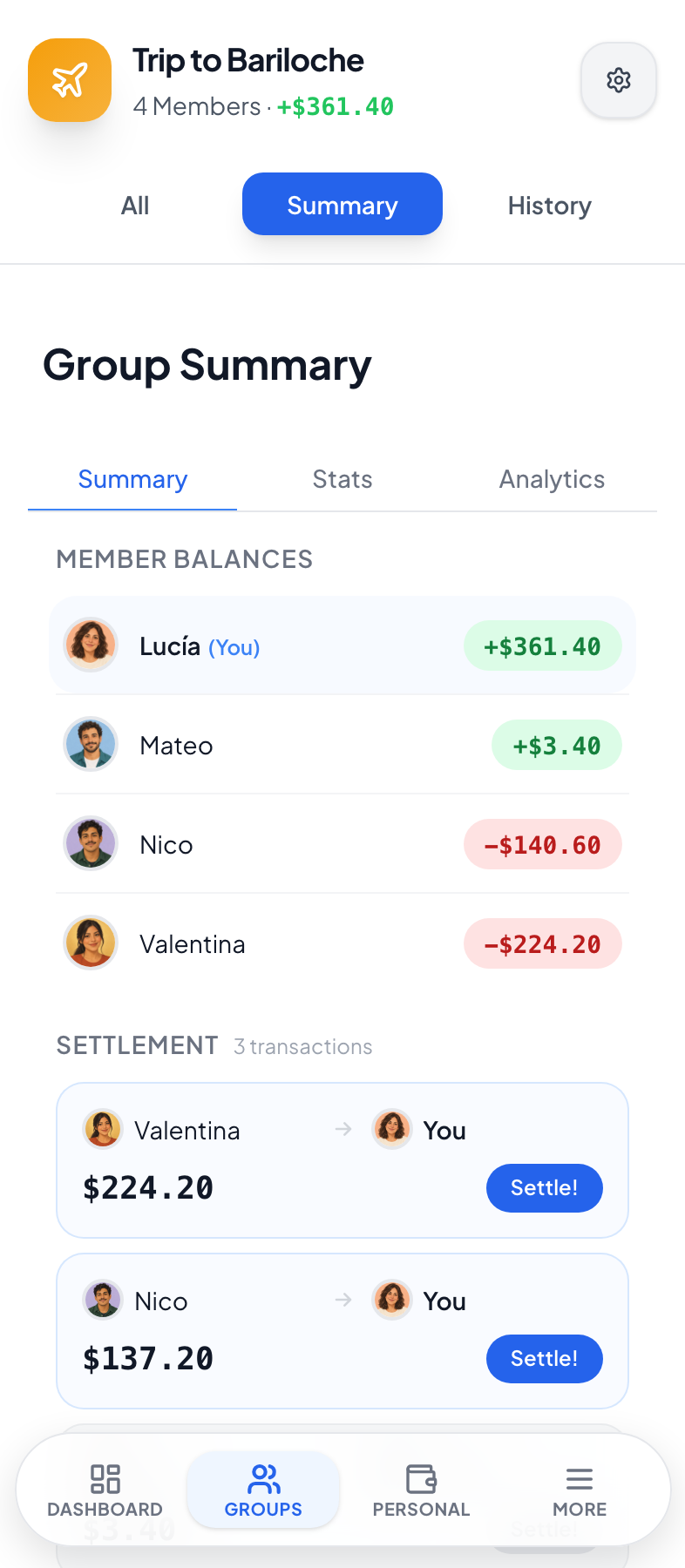
When someone pays, tap Settle! to record it. Spliteo doesn’t move money: people pay however they like (cash, bank transfer, Mercado Pago, Venmo) and record it in the app. There are no transaction fees.
Two details worth knowing:
- Paying in a different currency. If a debt is in EUR but your friend pays you in USD, record that they paid in a different currency by entering the exchange rate or the amount paid. The debt is still cleared in euros.
- Partial payments. If someone pays only part of what they owe, add it manually as a Transfer.
8. See everyone at once on the Dashboard
Consolidated Balances on the Dashboard shows your net balance with each person across all your groups, with Breakdown, Settle, Simplify and Shift options.
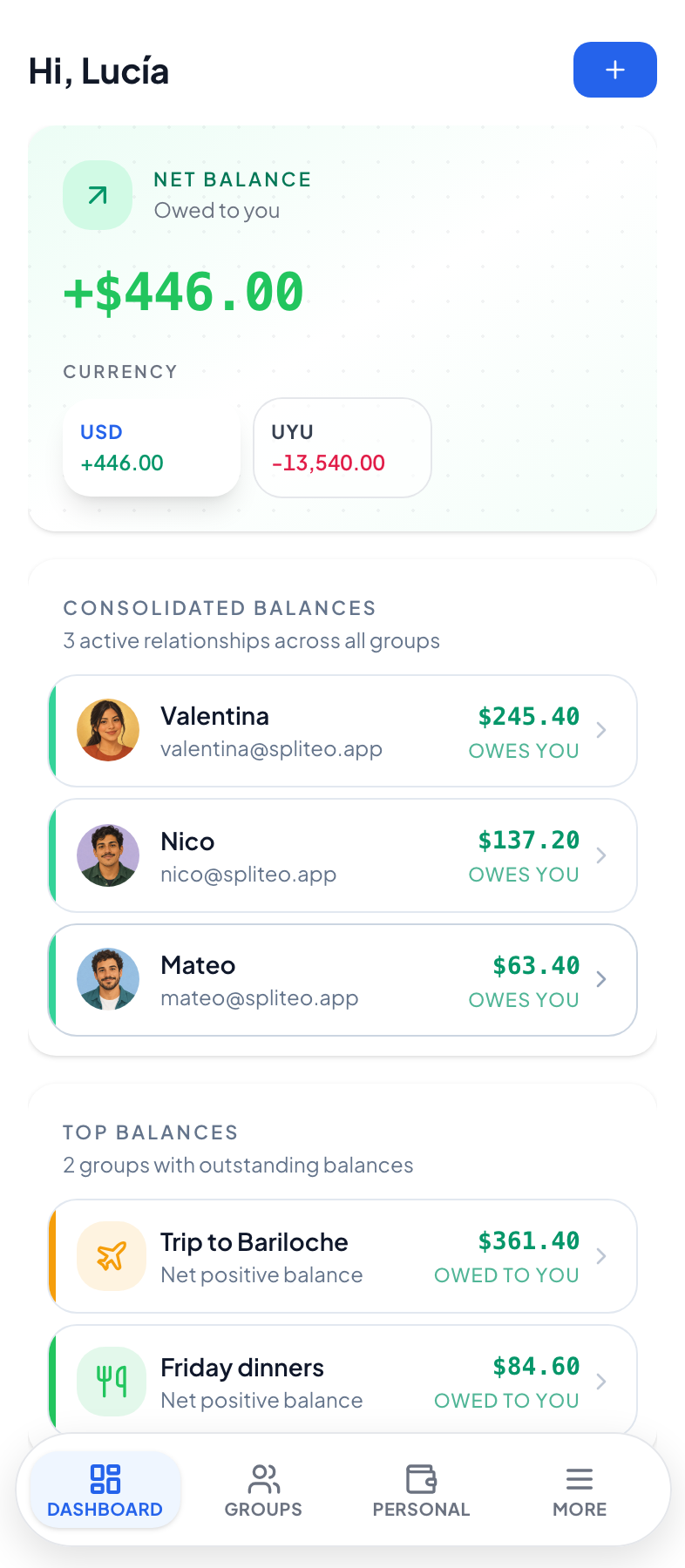
Shift lets someone who owes you take over what you owe a third person, so the money doesn’t have to pass through you. The other person has to accept it first.
9. Check the history and export your data
The History tab lists every transaction created, edited or deleted in the group, and each transaction keeps its own edit history. You also get push notifications when group transactions are added, edited or deleted, so nothing changes quietly.
To take your data out, export to CSV (the last 30 days on Free, up to 365 days on Premium) or to PDF with expense and group summary reports (Premium).
10. Track your own money in Personal
Personal Finance is for your own expenses, income and savings. Use Add Transaction to log something, Add Budget for a monthly budget (overall or per category, with alerts) and Add Goal for a savings goal with a deadline and contributions. Your share of group expenses syncs in automatically: your €30 share of that Lisbon dinner shows up without typing it twice.
Free vs Premium
| Free | Premium | |
|---|---|---|
| Groups (created + joined) | Up to 6 | Unlimited |
| Expenses | Unlimited | Unlimited |
| Receipt scans | 3 per month | 20 per month |
| Budgets and savings goals | 1 of each | Unlimited |
| Active recurring expenses | 1 | Unlimited |
| CSV export | Last 30 days | Up to 365 days |
| PDF export | Not included | Expenses and group summary |
Premium also adds analytics charts and longer history, receipt photo attachments, multiple currencies in personal finance, all group icons and custom colors, and the AI assistant connector (here’s how to use it with Claude). It costs US$1.99/month, US$19.99/year, or US$59.99 once for lifetime access (lifetime is only available on the web). In the App Store and Google Play, prices are localized for your country.
FAQ
Do my friends need a Spliteo account?
No. Add them as guest members by name. If they sign up later, invite them by email; once they accept, their expenses move to their account.
Can I pay people through Spliteo?
No. There’s no bank connection and no in-app payment. Pay however you like, then record it with Settle! or a Transfer.
Can I split by percentage?
Not directly. Use Parts (60/40 is 3 parts and 2 parts) or exact amounts with Amount.
What if a trip uses two currencies?
Spliteo keeps a separate balance for each currency, with no forced conversion. See how to split travel expenses for a full trip walkthrough.
Is there a limit on expenses on the free plan?
No. Free includes unlimited expenses, with no daily or monthly cap. If you’re switching apps, here’s how Spliteo compares as a Splitwise alternative.